


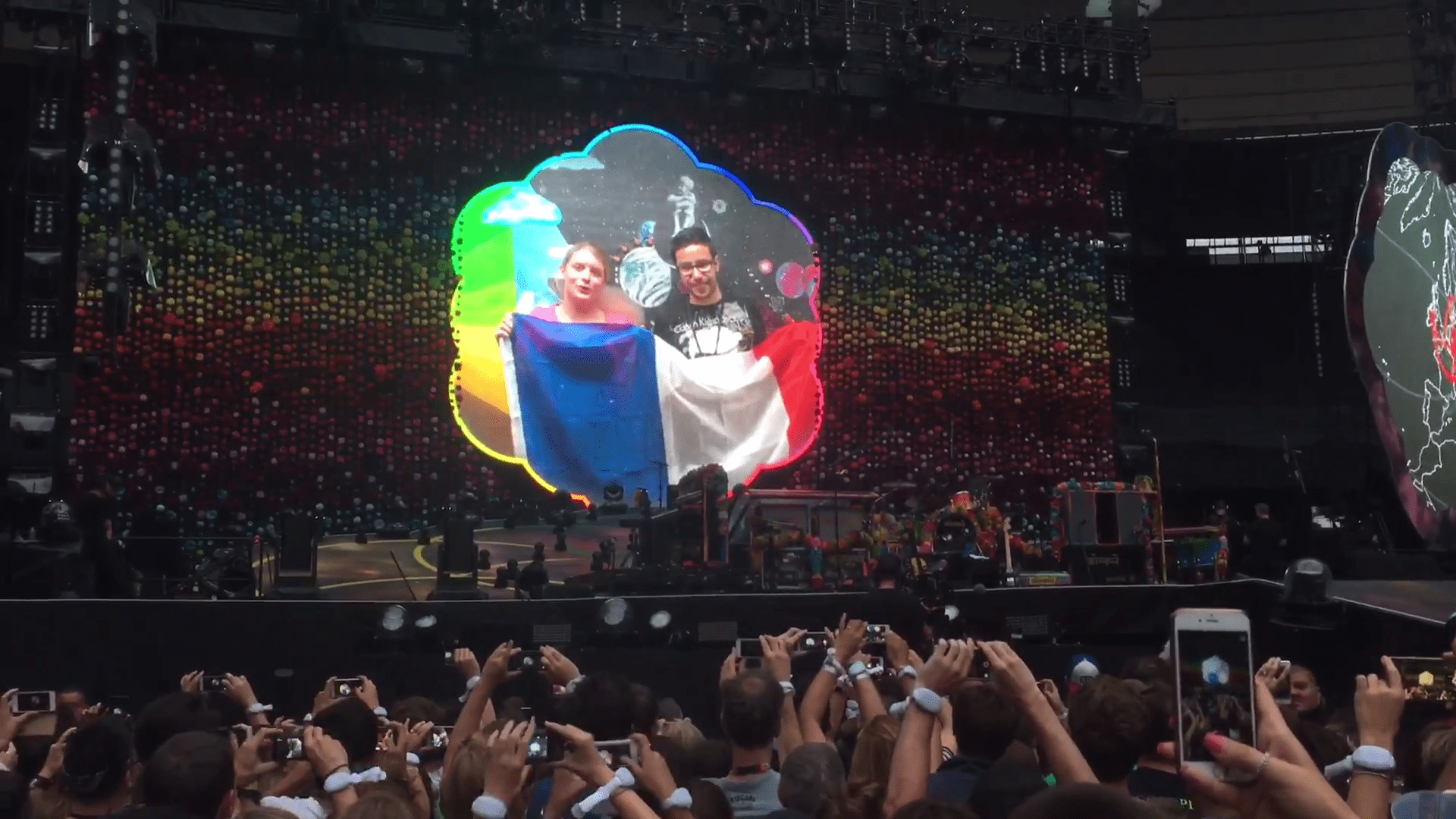

If you have ever been to a Coldplay concert or simply followed our #AHFODTour social coverage, you may have noticed the intro video at the beginning of each show. Many fans have asked what is the secret to featuring in this video? Debs Wild has given us the inside scoop on how to star in the esteemed introduction!
The intro video is a unique attribute of this tour and succeeds in exciting the crowd before the lead into 'A Head Full of Dreams'. Ever since the launch of the #AHFODTour in March 2016, multiple fans have been chosen to introduce Coldplay on stage while representing their country by waving their local flag. A second video is also recorded to send love to the next country on the tour and will also appear at the beginning of that show.
Fans are not usually chosen in advance to do the introduction so don't go asking! Fans usually wait near main entrances or the entrance to the backstage car parks etc. The band's video director, Ben Miles, will head outside the venue at around 12:00 noon on the day of the show to select fans to be filmed for that night.
Debs has told us that fans wearing colourful clothes are often chosen for the video. It seems that if you stand out and show up early to the venue, you have a high chance of being chosen. However it is all down to luck, so if you fancy your chances then follow the tips above for a chance to appear in this unforgettable introduction!
Recommended Comments