


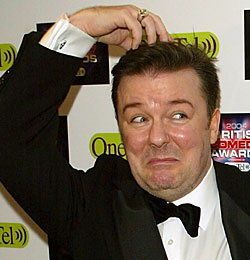

I wasn't sure where Ricky Gervais and Stephen Merchant would take their hilarious TV follow-up to The Office, Extras, after the first season ended on an unusually upward note.
The six-episode, star-heavy season about hapless extras (sorry, "background artists") Andy Millman and his doughey, inappropriate mate, Maggie, is nearing its end on Wednesday nights on the ABC but in Britain, they're gearing up for the second round.
"It's not like we are just trying to get points for celebrity chums," says Gervais of the series. "There has to be something we can deconstruct."Ready to take the mick out of themselves this time are Orlando Bloom, Sir Ian McKellen, David Bowie, Coldplay frontman Chris Martin and Harry Potter himself, Daniel Radcliffe.
Avoid this link if you don't want to spoil the first season's finale for yourself but the path Gervais and Merchant take Andy down is so genial you'll forgive them for their introspection. Needless to say, there's plenty more of their trademark PC-bashing to come.
And if you haven't yet seen them, don't miss the Microsoft training videos made by the Office team - in which, among other things, David Brent applauds the South African prison system for helping Nelson Mandela "go straight" - before the company convinces Google Videos to pull them.

Source: http://www.abc.net.au
Recommended Comments