




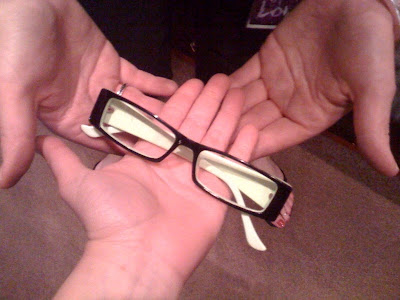
 Dear Lovers and Friends, My glasses have been found! Last night, my already tired eyes struggled to articulate the flood of thoughts, reflections, and realizations about my trip in NOLA (New Orleans, Louisiana) without my glasses to no avail.
Thankfully, they’ve been found and my eyes have become of use once again! Stay tuned for my post about NOLA as I work through my draft of it. In other news, I recently moved out of Bus 2 to make room for new lampies (lighting technicians) and I’m proud to say that I’ve been designated Bus Mom of Bus 5 today! This means that I’m in charge of managing our grocery list and making sure it lands in the hands of the powers that be.
Read the full blog entry with pictures at the Oxfam Blog website here onwards.
Recommended Comments