



Skip to content
View in the app

A better way to browse. Learn more.

Coldplaying

A full-screen app on your home screen with push notifications, badges and more.

To install this app on iOS and iPadOS
  1. Tap the Share icon in Safari
  2. Scroll the menu and tap Add to Home Screen.
  3. Tap Add in the top-right corner.
To install this app on Android
  1. Tap the 3-dot menu (⋮) in the top-right corner of the browser.
  2. Tap Add to Home screen or Install app.
  3. Confirm by tapping Install.

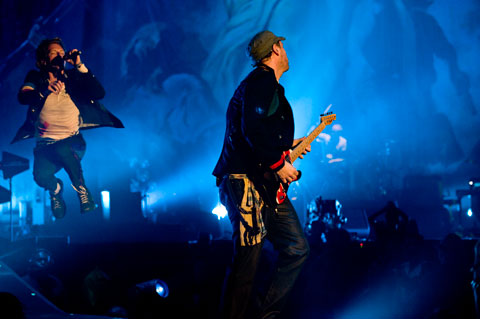
Coldplay Live at The Forum July 14, 2008: Photographer's Journal

LA Weekly blogs have posted an excellent article after following the photographer around at last night's opening LA show at The Forum. Read the full report and all the superb pictures here. Some excellent fan videos have also been uploaded here and we'll be adding more tour images every day to the Coldplaying gallery. Watch this space!


9:37 PM – No shooting until the after the song when Chris is done playing the piano. That’s not what we were told, but that’s what I find out. They’re not kidding either.

9:42 PM – Our first song is just over and the media contact lets us know that there is one more song and that security wants to see me (and another guy) after the shot. Christ, what now? Can I say that in church?

9:47 PM – Back in the catacombs and security is checking my images to ensure that I didn’t shoot Chris at the piano. I didn’t. I let her know that I was only setting up. She thanks me and one other accused and we’re on our way back to the “lounge”.


ColdplayTN010.jpg

User Feedback

Recommended Comments

There are no comments to display.

Guest
This is now closed for further comments

Account

Navigation

Search

Search

Configure browser push notifications

Chrome (Android)
  1. Tap the lock icon next to the address bar.
  2. Tap Permissions → Notifications.
  3. Adjust your preference.
Chrome (Desktop)
  1. Click the padlock icon in the address bar.
  2. Select Site settings.
  3. Find Notifications and adjust your preference.