


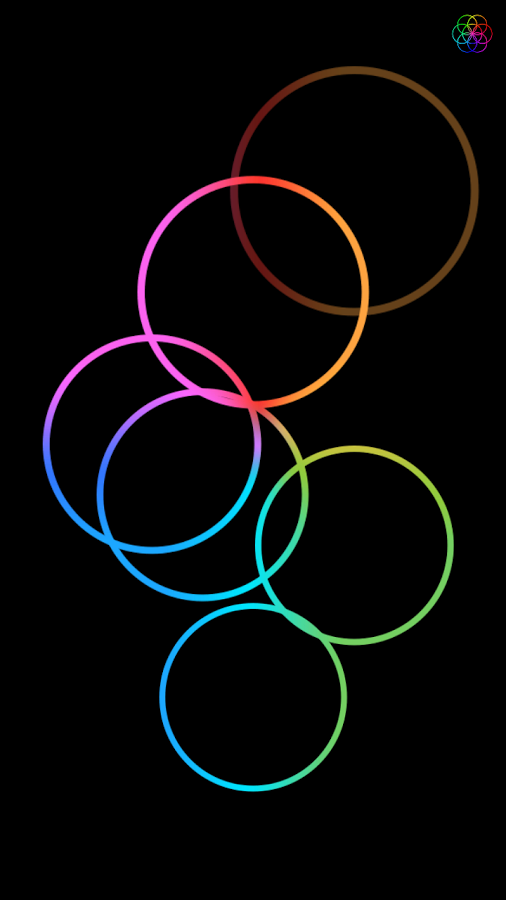

Opal Limited, a company created by Brian Eno and Peter Chilvers, has just released a companion app for Coldplay's new track "Hypnotised". The app was released on the Google Play Store and Apple App Store on June 9th but fans only realised the quiet release today.
Upon opening the app, the user is greeted with a text written in typical Coldplay fashion - not an uppercase letter to be seen!

This suggests that the band may play Hypnotised live at each of their concerts to coincide with the app's release. We are not sure what exactly the aim of this app is but early theories suggest that the app reacts to the song being played live. Thousands of phones displaying a pattern of images in a sold-out stadium may have the potential to create a wonderful sight.
The app is based on Bloom by Brian Eno which "allows anyone to create elaborate patterns and unique melodies by simply tapping the screen. A generative music player takes over when Bloom is left idle, creating an infinite selection of compositions and their accompanying visualisations" The Hypnotised app could simply be a rebranded version of this app or it could have some extra features that we do not know about.
For now we will just have to wait for a statement from Coldplay or Opal Limited themselves! Discuss this app with fellow users on our Forums
Recommended Comments