


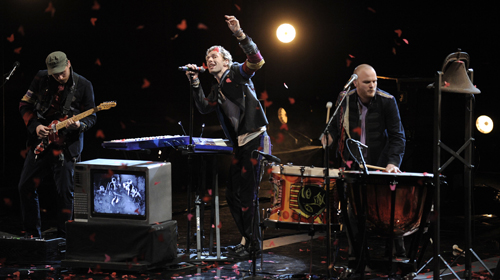

"Viva La Vida" is the second song to emerge from forthcoming album "Viva La Vida or Death and All His Friends" (June 17), an album that The Sun's Gordon Smart's wrote is "as heavy-going as the Bible but as ultimately as rewarding." But the majesty that is Coldplay couldn't prevent a plague like the massive fire Sunday morning at Universal Studios -- the site of the awards -- and the world appeared unchanged when lead singer Chris Marin sat at the end of the stage to herald the end of the song.
But all told, Coldplay handled itself quite well Sunday night, giving a relatively stripped down performance of a rather ornate song. Martin began at the keyboard, but soon drifted from his bandmates -- mainly the booming, irresistible tom-tom drumming of Will Champion. With his hands in the air, Martin swayed to the song's swift-moving strings, turning the song into the arena-charmer it is destined to be.
And give Coldplay for credit for keeping things relatively simple. The orchestral accompaniments were seen only on a backing screen and appeared looped. The band resisted the traditional overblown award show trappings, and instead showed the power of an understated guitar riff and a well-timed church bell.
What did you think of the performance? To you what does Viva La Vida sound like live? You can join the discussions here [thanks bta5857 and everyone else who contributed!]

Recommended Comments