



Skip to content
View in the app

A better way to browse. Learn more.

Coldplaying

A full-screen app on your home screen with push notifications, badges and more.

To install this app on iOS and iPadOS
  1. Tap the Share icon in Safari
  2. Scroll the menu and tap Add to Home Screen.
  3. Tap Add in the top-right corner.
To install this app on Android
  1. Tap the 3-dot menu (⋮) in the top-right corner of the browser.
  2. Tap Add to Home screen or Install app.
  3. Confirm by tapping Install.

Lyon Photoblog Overflow: More Coldplay Pictures From Yesterday

Good afternoon. Here are some pictures which we didn't have time/space/fast enough connection for from yesterday's live blog.


lb271.jpg

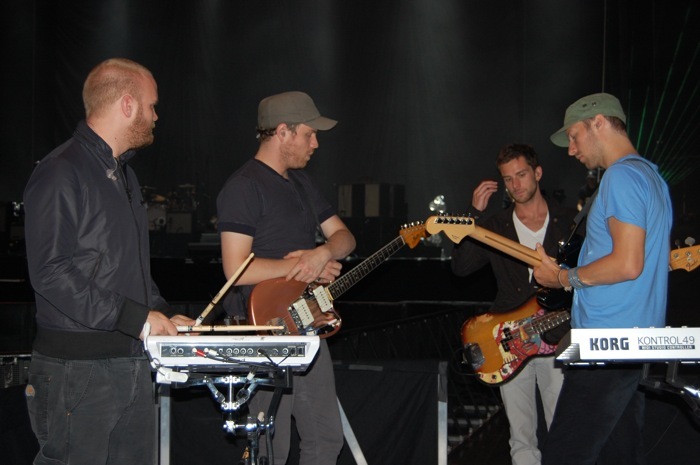
Figuring out how to play the new version of Talk in the soundcheck

lb212.jpg

Chris, pondering


lb231.jpg

Warming up for the show...


lb281.jpg

Moments before taking the stage


lb221.jpg

Chris on guitar


lb241.jpg

Chris on piano


lb291.jpg

Chris on fire


lb261.jpg

It's fair to say the refreshments stall wasn't very busy during the show


lb251.jpg

The crowd (which the band all agreed were absolutely amazing last night)


lb201.jpg

The Lovers In Japan confetti canons in full effect


It was a very fun day.


Anchorman


Click to cast your daily vote for Coldplay.com in the BT Digital Music Awards

User Feedback

Recommended Comments

There are no comments to display.

Guest
This is now closed for further comments

Account

Navigation

Search

Search

Configure browser push notifications

Chrome (Android)
  1. Tap the lock icon next to the address bar.
  2. Tap Permissions → Notifications.
  3. Adjust your preference.
Chrome (Desktop)
  1. Click the padlock icon in the address bar.
  2. Select Site settings.
  3. Find Notifications and adjust your preference.