Mark Di Angelo
Members
-
Joined
-
Last visited
-
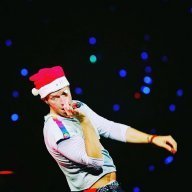
I LOVE THIS IT MAKES ME MISS THAT NIGHT SO MUCH T_T funny story i requested us against the world and some guy messaged me saying "Hey we both will get picked 100% cause all the other song requests are random songs the band will never play, who ever wins will buy dinner for tonight!" and i agreed, thank god i won the bet! Also in the santa hat, i live streamed on my IG @Colpdlay through God Put A Smile Upon Your Face, some one told me to throw my santa hat at him but i was sorta shy! I was thinking about it all concert long until something just like this came up and i said, Fuck it! its my last time to do it so im gonna throw it! I love how he wore it too! in the end of the show i got a love button that Chris threw and i got my santa hat back! Im so glad we both experienced our first ever coldplay shows in the same two days! Easily the best concert of my life!