


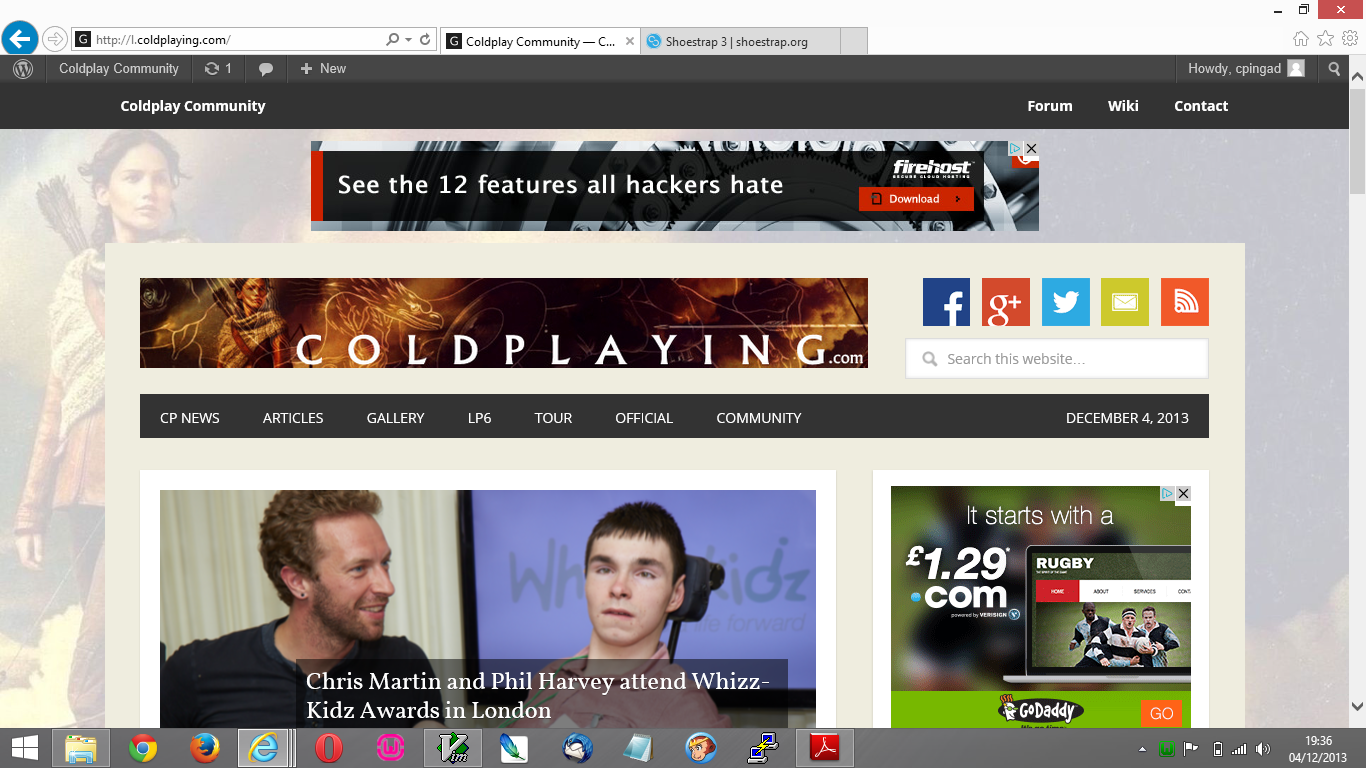

A short message from the new proprietor and head honcho of Coldplaying.com
Hello to all my fellow Coldplay fans, I wish to introduce myself as the new owner of Coldplaying. I will state more info about myself and my identity in due course (no, I am not Batman!). At the moment, a changeover process is underway at the backend and we are trying to keep the change as smooth as possible and Ian, Stephen & co are doing a great job as always behind the scenes and making me feel very welcomed!
I would love to say as a fellow poster on the forums, I am looking forward to the times ahead with Ghost Stories on the horizon and a new wave of Coldplay fans about to ascend on the forums. There are exciting times ahead for Coldplaying, I have my ambitions for Coldplaying which are built on top of the success Ian, Jen, Stephen and everyone involved have achieved over the past 14 years and I would love to see and will give it everything to make Coldplaying even bigger while keeping a close community feel, basically to make it the ultimate haven for ALL Coldplay fans.
I will be trusting in everyone and the moderators to keep doing the great job they have always been doing and one of the first of many goals and gradual changes will be to expand the Facebook page and work on the Youtube channel. There is also a Coldplaying phone app on the way very soon, which will be available for Android and Iphone (should it pass Apple’s verification!) Keep your eyes open for the next update! Call it Magic? Call it true! See you soon!
Recommended Comments