Philine
Members
-
Joined
-
Last visited
Everything posted by Philine
-
Yes, I fortunately can for a while. Thank you!
-
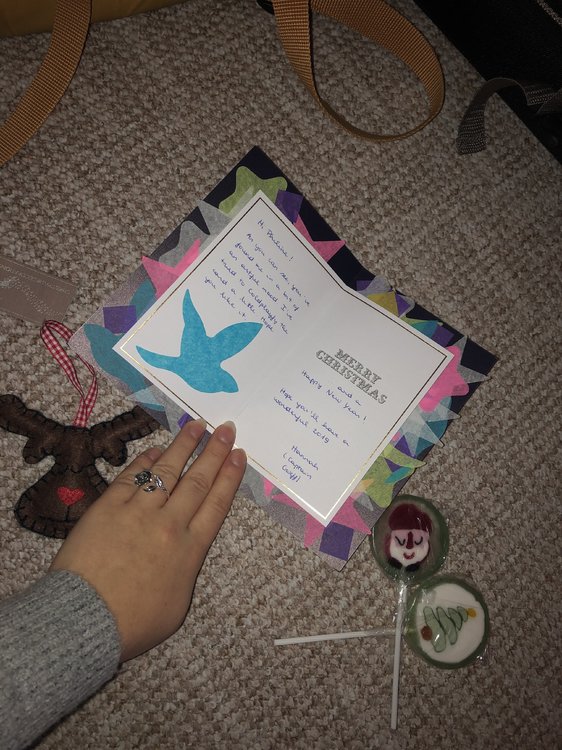
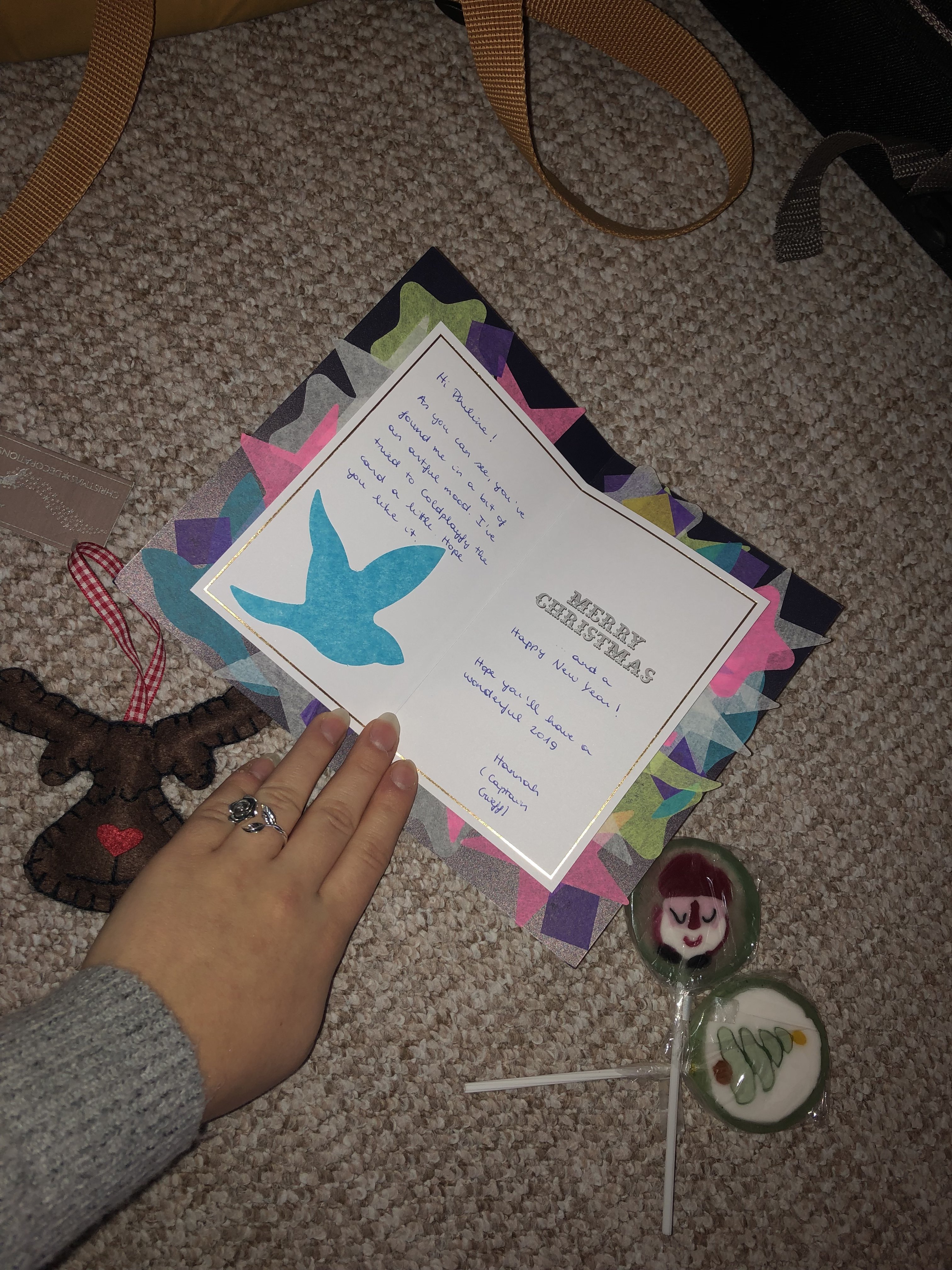
Hello everyone! I received those beautiful gifts last week already but I was so busy and therefore wasn‘t even able to open it when it arrived - and when I did, I didn‘t have time to post on here. Now I finally can though. It was my first time taking part in the Secret Santa and so it was particularly exciting. It made me so happy to receive this! With all the stress that I had, I still had something to get excited about. The Christmas card with all that confetti looks wonderful and since I wasn‘t able to bring that much confetti from my concert due to all the rain that made the confetti too wet to pick up, you couldn‘t have made it more perfect. I also love the reindeer ornament and the lollipops! (They‘re way too pretty to eat to be honest, haha) Thank you so much for all of this, Hannah! I hope you‘re having/you‘ve had an incredible Christmas ❤️ @Captain Crieff