Skip to content
View in the app

A better way to browse. Learn more.

Coldplaying

A full-screen app on your home screen with push notifications, badges and more.

To install this app on iOS and iPadOS
  1. Tap the Share icon in Safari
  2. Scroll the menu and tap Add to Home Screen.
  3. Tap Add in the top-right corner.
To install this app on Android
  1. Tap the 3-dot menu (⋮) in the top-right corner of the browser.
  2. Tap Add to Home screen or Install app.
  3. Confirm by tapping Install.

playfunlive

Members
  • Joined

  • Last visited

Everything posted by playfunlive

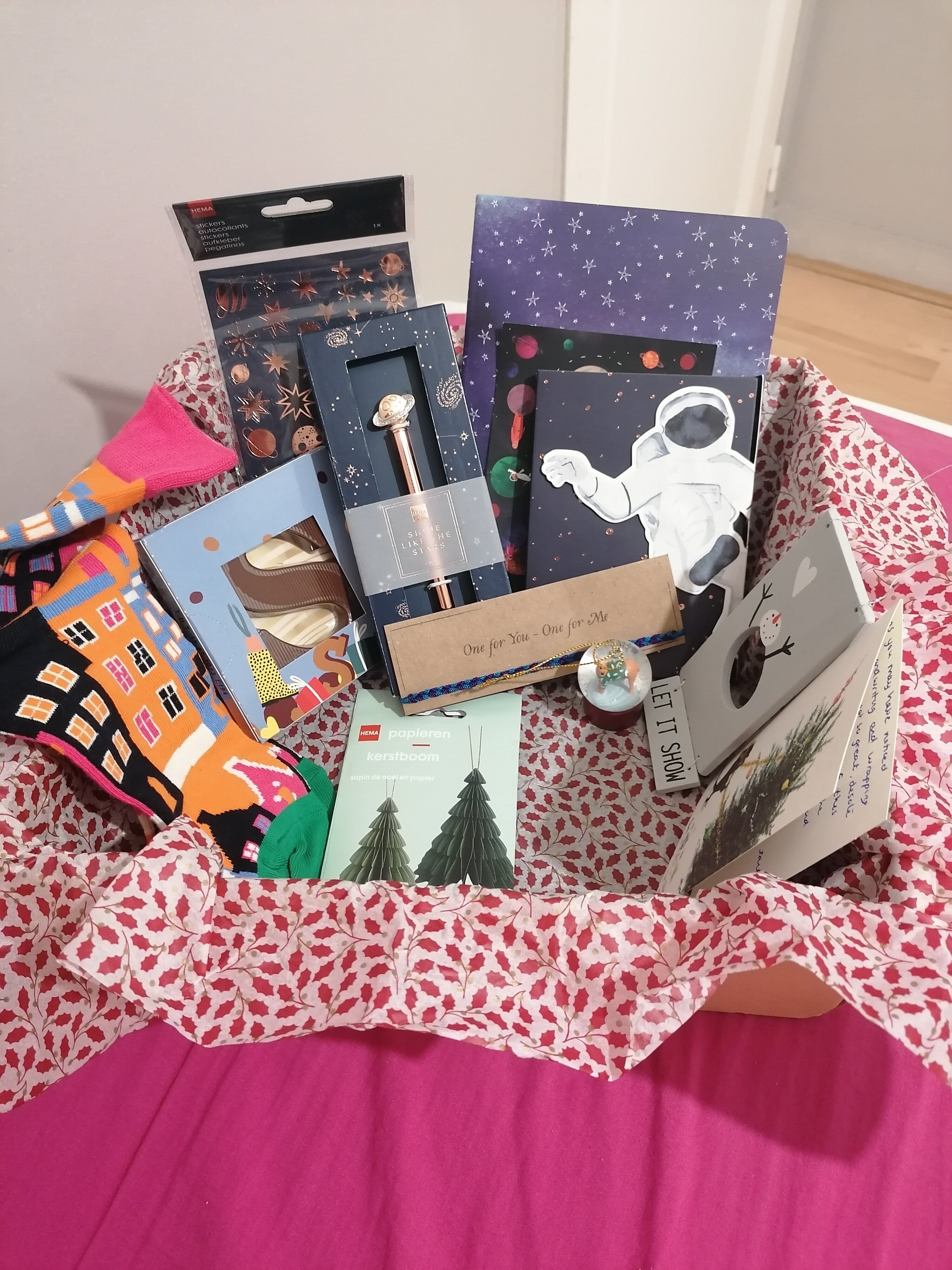
  1. Hellooo! I'm very late to the party and I have no excuse apart from the fact that december wasn't the best of months for me so I apologise to my person who'll get their present hopefully this week 🤞🏻😁 But while I'm here I wanted to share what i got from my amazing santa! Lots of space related stuff, the coolest socks, an S shaped chocolate, a bracelet and very cute christmas decorations 🥺 I wasn't expecting this many things so I felt very spoiled!! Dankjewel again @diannerozendal, and thank you coldplaying for organising this every year!! Hope everyone had nice holidays and I wish you all a very happy new year ☺️🥳🥂

Account

Navigation

Search

Search

Configure browser push notifications

Chrome (Android)
  1. Tap the lock icon next to the address bar.
  2. Tap Permissions → Notifications.
  3. Adjust your preference.
Chrome (Desktop)
  1. Click the padlock icon in the address bar.
  2. Select Site settings.
  3. Find Notifications and adjust your preference.