


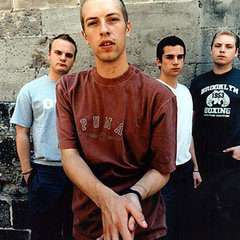
Coldplay and a number of other artists have teamed up with Live Nation to help support live music crews affected by COVID-19!
"Live music inspires millions around the world, but the concerts we all enjoy wouldn’t be possible without the countless crew members working behind the scenes. As COVID-19 puts concerts on pause, we want to extend a helping hand to the touring and venue crews who depend on shows to make a living."
Live Nation have created 'Crew Nation', a global relief fund for Live Music Crews.
"Crew members are the backbone of the live music industry, and we hope you’ll join us in supporting them through this temporary intermission until we can once again unite millions around the world through the power of live music. Crew Nation is powered by Music Forward Foundation, a charitable 501c3 organization, that will be administering the fund.
Live Nation has committed $10 million to Crew Nation – contributing an initial $5 million to the fund, then matching the next $5 million given by artists, fans and employees dollar for dollar.
Learn more about Crew Nation's goal and how it will rollout by clicking here.

To help support Crew Nation, you can buy merchandise or donate by using the links below:
Recommended Comments
There are no comments to display.