
Nie
Members
-
Joined
Everything posted by Nie
-
-
-
Well noticed, but it is not something you can see. Not Green Eyes
-
No to Animals. Yes, they are vegan and what else?
-
-
[emoji23] Nope. But what have all of those in common?
-
-
No a, but o is good [emoji4] ???? ???e ?o?'?e ????n? on ???? ???e ? ?no? no ?on?
-
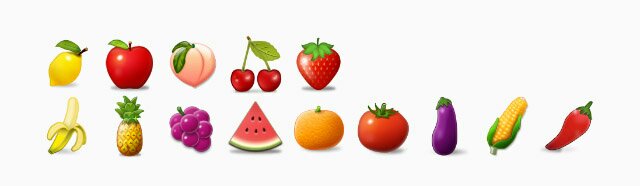
Extra emojis
-
???? ???e ???'?e ????n? ?n ???? ???e ? ?n?? n? ??n?
-
???? ???e ???'?e ?????? ?? ???? ???e ? ???? ?? ???? I have also added 1 ? that got lost
-
-
Because I came here with a load
-
Zones on Earth, where the time is different and which we have to deal with when organising Coldplay Listening Parties.
-
???? ???? ???'?? ?????? ?? ???? ???? ???? ?? ????
-
And I know I'm dead on the surface But I am screaming underneath
-
My phone is really living it's own life today. And I'm too tired to notice. Up In Flames.
-
Up with Flames?
-
Upon pillars of salt and pillars of sand
-
-
-
So you've got power over me
-
No
-
No
-
Moi? I wouldn't dare. [emoji1]