AMDB9
Members
-
Joined
-
Last visited
Everything posted by AMDB9
-
Should be working now
-
-
Unfortunately, I won't be able to make it. Thanks for letting me know about the "takeoff time" [emoji14]
-
UATW
-
-
BONES sinking like stones
-
Hurts Like Heaven deserves to win!
-
DLIBYH
-
Is that longitude/latitude coordinates?
-
POC
-
No More Keeping My Feet On The Ground?
-
[All] you ever wanted was love
-
U.F.O.
-
"Everything you ever wanted in a a permanent state" Life in Technicolor ii
-
Correct!
-
Hint: What kind of material do the 3 buildings look like they're made out of?
-
Anyone???
-
Ah, the simple days of Calc 1. The kind of math I learned today was how to solve for all residue classes x(mod n) that satisfy polynomials.
-
-
Any guesses? It's pretty straightforward.
-
This one actually speaks in good English!
-
Oh okay. Yeah, still strange...
-
Even the one behind the bakery?
-
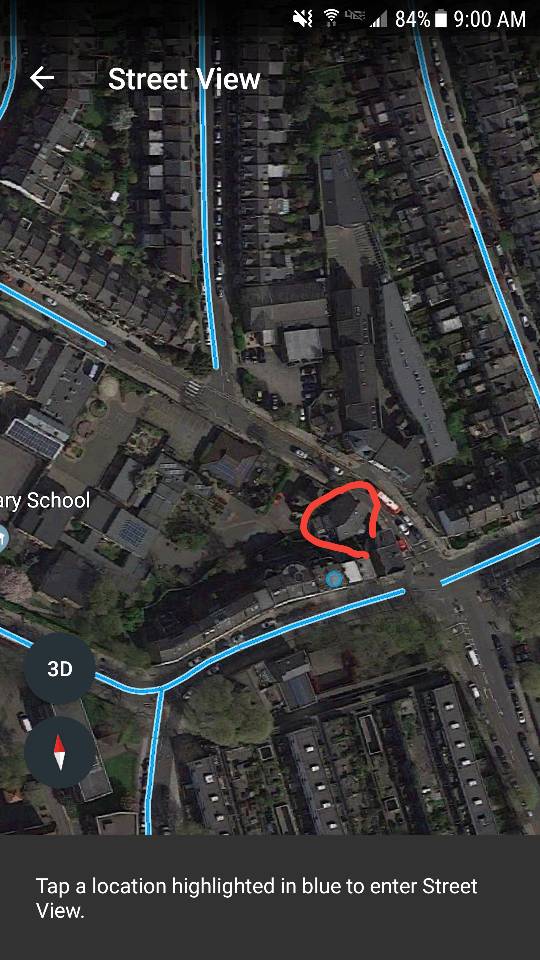
Has anyone ever noticed that you actually can't see The Bakery on Google Street View? When you view the street it's on, there is a big jump between pictures so that you can't actually look down the alley. And you cannot even access Street View for the street behind The Bakery. In the picture below, the blue lines show where Street View is available, and you can see that they are available on every other road in the area except around The Bakery, which is circled in red. I wonder if the band requested to have these images removed??
-
Please use these emojis!!!