
Gideon_Mx
Members
-
Joined
-
Last visited
Everything posted by Gideon_Mx
-
I've missed each live stream so far :bigcry: Looking forward to watch the next live streams :)
-
-
(Degene) van wie ik houd Kaleidoscope
-
Jonathan Mark Buckland
-
-
The best pic of the best guitarist By the way, if you haven't submitted your votes yet for the Coldplaying Awards, vote @Gideon_Mx for Biggest Jonny Fan 2016 Thanks!
-
Same answer lol No and I think that's never gonna happen. I don't like reading books, to be honest :D Have you ever been in a jacuzzi?
-
Kaleidoscope
-
High Speed
-
Nobody (said) it was easy
-
Raspberry Beret suddenly started playing in my head
-
-
Up&Up
-
I don't think so. It wasn't on the first list and no one mentioned the song after that (except for me).
-
42 has won this round ! It's your turn to post a new couple of Coldplay songs :)
-
Trouble
-
We Never Change?
-
-
Verhuizen naar Mars White Shadows
-
How long must you wait for it?
-
-
-
-
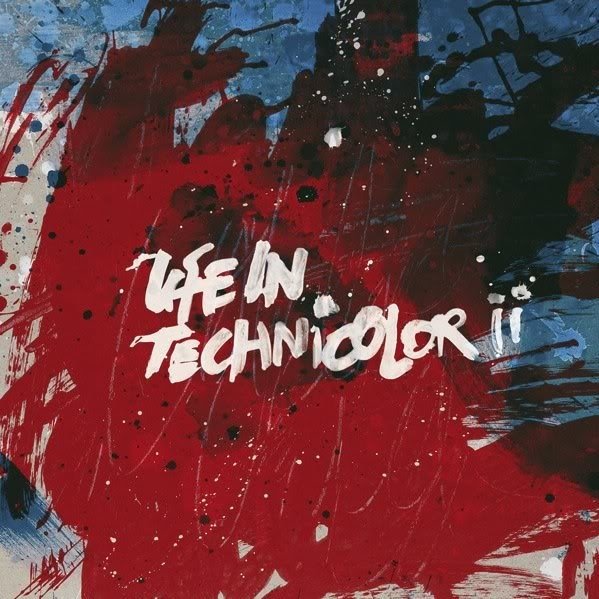
Life In Technicolor
-